

 ▶ Tap to watch: Add your DNS
https://parceria.tutoriaisdoapp.online/en/dns/#video
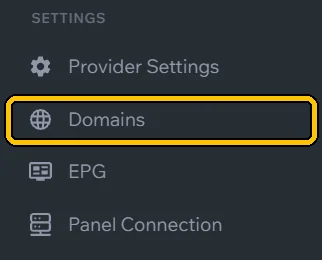
In the menu, click Domains.
In Domain Groups, click + and create a group (e.g. Main). DNS 1 and DNS 2 will both go in it.
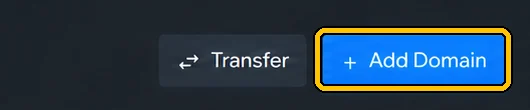
Click Add Domain.
In Domain, type the address without
http://. For Port and Protocol, use your server details. Name it in Label (e.g. DNS 1), pick the group in Group and click + Add Domain.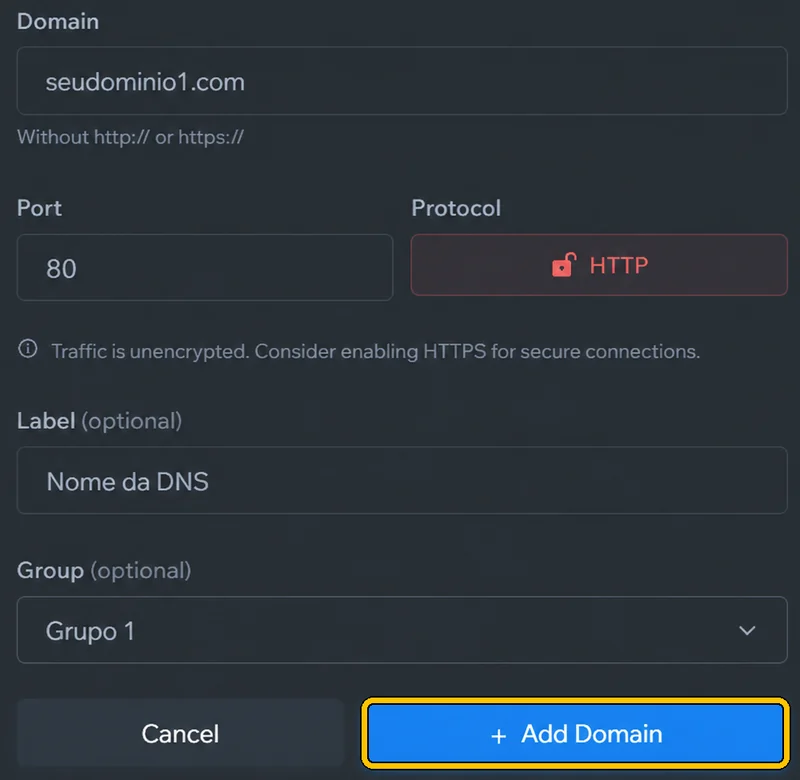
Repeat for the second one (DNS 2), in the same group.
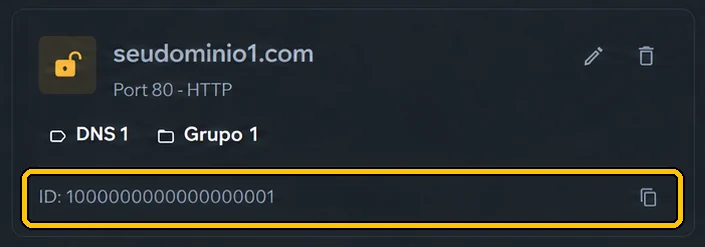
Each DNS gets an ID (numbers only): Sigma and your system ask for it. Copy it with the icon next to it.
Use a DNS just for MaxPlayer, kept out of your resellers’ lists and apps. If the public DNS is attacked, your MaxPlayer customers stay online.